
Big screen
Big-screen quiz — the board on a TV or projector
How to put the FamiliVersus board — a Family Feud–style game — where the room can see the question, the answers and the points. This is a screen guide, not a party script. It fits a lesson and a team event.
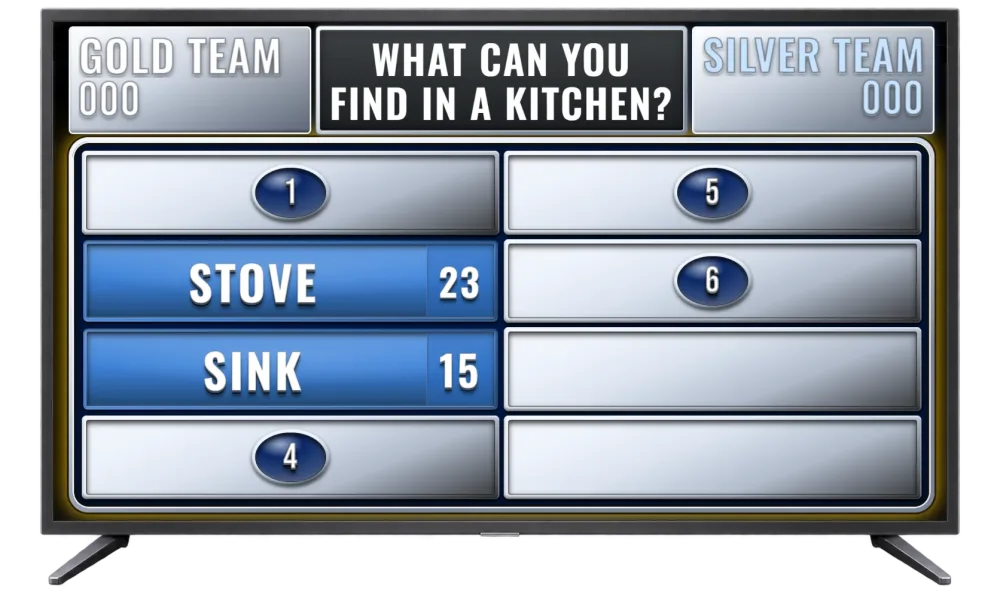
How to connect the screen
The board is a page in the browser. Open it on a smart TV, on a computer plugged into a projector, or through Chromecast or HDMI from a laptop. The host panel stays on a separate phone, tablet or laptop. You link them with a QR code.
- Internet on the screen and on the panel — the game syncs live and does not run offline.
- Full screen in the browser, so the chrome disappears.
- The buzzer is a separate, optional device: one screen, two buttons, described on the FamiliVersus page.
The board shows whatever the host loaded: a question, up to eight answers and the points. The round itself does not invent the content — questions come from a built-in category or from your library.
Technically simple
How many devices do I need for a TV board?
Two: a screen with a browser (TV, projector, or a laptop over HDMI or Chromecast) and a separate host panel. The buzzer is a third, optional device. Each one needs internet.
How do I connect a TV?
Open the TV board in a browser on the television (or via Chromecast / HDMI from a laptop) and connect it to the host panel with a QR code.
Does it work on a projector?
Yes — a browser and full screen are enough. It works in conference rooms, schools and community centres.
Do I need special hardware?
No. A regular smart TV, a projector with a computer, or a laptop connected to a monitor is enough.
Does it work offline?
No — the host panel, TV board and buzzer need internet to sync the live game state.
Do I need to install anything?
No. You and your guests install nothing. A browser and internet are enough — host panel, TV board and team buzzer are web pages.